How to use your iPhone as a MIDI controller for Logic, Ableton or GarageBand
Your iPhone can be a wireless chord controller for your Mac. With the still.synth app you hold a chord shape, tap a root, and the chord goes into your DAW in key, with a bassline and drums if you want them. No cable, no interface.
Connect the iPhone to the Mac in Audio MIDI Setup (Window → Show MIDI Studio → Bluetooth → Connect). In the still.synth app turn on ☰ → General → MIDI Out. The iPhone now shows up as a MIDI input in your DAW: chords arrive on channel 1, bass on 2 and drums on 10.
What you need
- An iPhone with the still.synth app from the App Store, iOS 16 or later.
- A Mac with a DAW: Logic Pro, Ableton Live, GarageBand, or anything else that takes MIDI input.
- Bluetooth on both. Bluetooth MIDI is built into iOS and macOS, there’s nothing else to install.
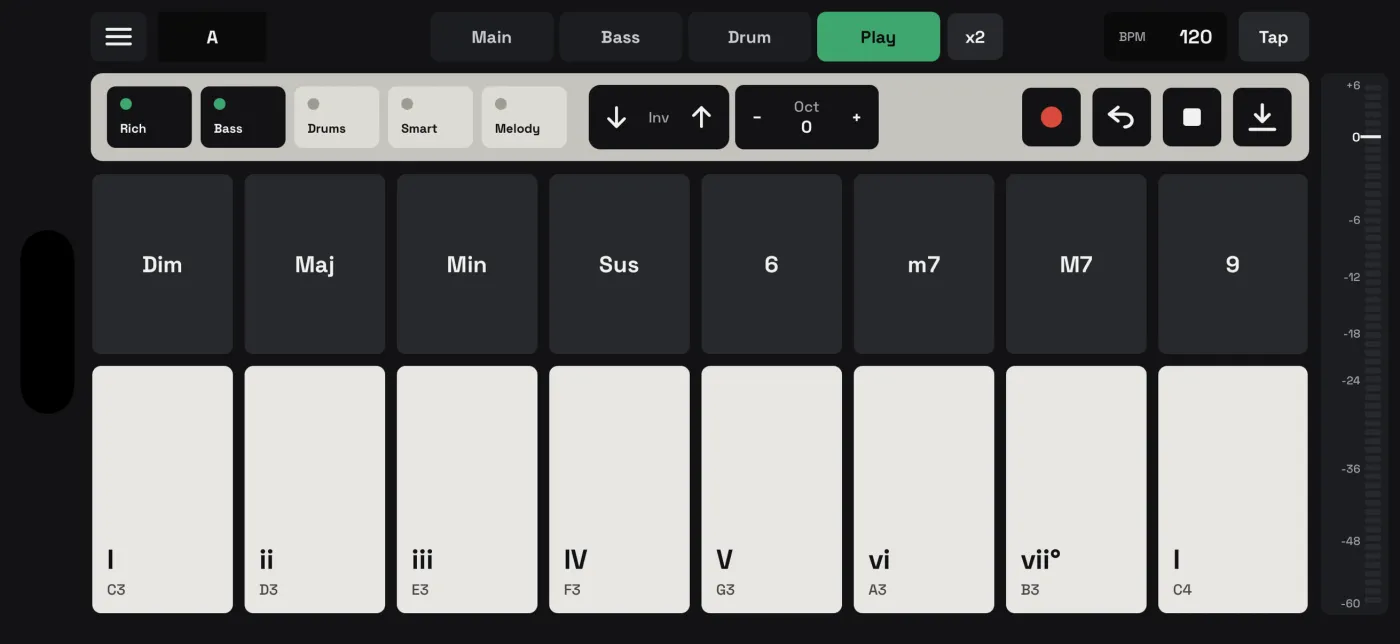
Why a chord app and not a plain keyboard app: the eight shape pads (Dim, Maj, Min, Sus, 6, m7, M7, 9) and the root pads follow the key and scale you set, so every chord you send is in key. One finger holds the shape, another picks the root.
Connect the iPhone to the Mac over Bluetooth
You do this once. After that the Mac reconnects to the phone.
- On the iPhone, open still.synth and go to ☰ → General → Bluetooth MIDI devices. The first time, iOS asks for Bluetooth access: tap Allow.
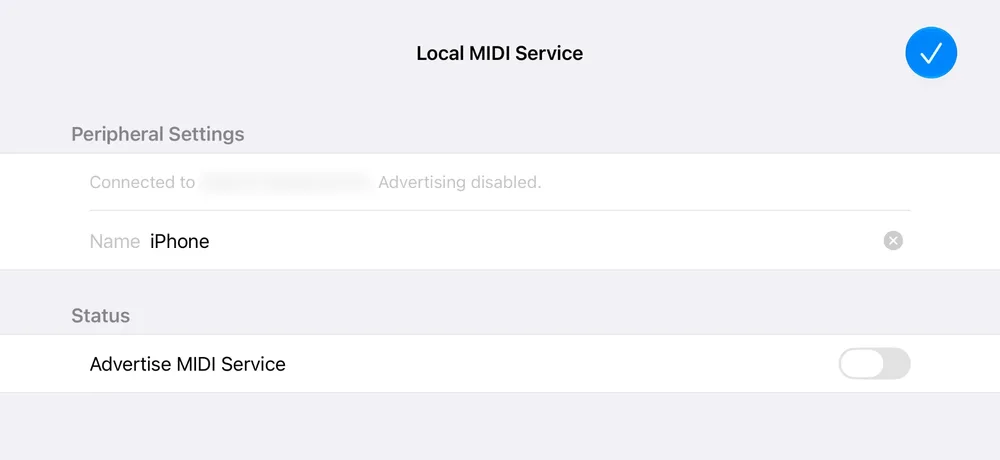
- In the panel that opens (iOS calls it Local MIDI Service), turn on Advertise MIDI Service and keep the panel open.
- On the Mac, open Audio MIDI Setup (Applications → Utilities). Choose Window → Show MIDI Studio and click the Bluetooth button in the toolbar.
- Your iPhone shows up in the list. Click Connect next to it.
Back on the phone, the panel now names your Mac and Advertise switches itself off. That’s normal: iOS stops advertising once it’s connected. Close the panel with the ✓.
Turn on MIDI Out on the phone
In the still.synth app go to ☰ → General and turn on MIDI Out. The phone goes quiet and sends everything it plays as MIDI notes, always on the same channels:
- chords (and single notes with Melody on) on channel 1
- the bassline on channel 2
- drums on channel 10
Loop layers you already recorded in the app are sent too, as they play. So the phone can run the chords, the bass, the beat and the loop, while the DAW makes the sound. Don’t want bass or drums? Switch Bass or Drums off on the Play tab and only the chords go out.
A small Bluetooth icon next to ☰ is bright while the phone has a MIDI connection and dim when it doesn’t.
Logic Pro: one track per part
Make a Software Instrument track for each part you want, for example a piano for the chords, a bass and a Drum Kit. Open the track inspector (press I) on each one and set:
- MIDI In Port: your iPhone (it’s listed with Bluetooth after its name), or All.
- MIDI In Channel: 1 for the chord track, 2 for bass, 10 for drums.
Record-enable the tracks, press Record in Logic and play on the phone: each track writes only its own part. With MIDI In Channel left on All, one track takes everything. The Logic Pro guide shows the same per-channel setup with screenshots, for the plugin.
Ableton Live: MIDI From the iPhone
- Open Settings → Link, Tempo & MIDI. Under MIDI Ports, find the iPhone input and turn on Track for it.
- Make a MIDI track for each part and load an instrument on it (a Drum Rack on the drum track).
- On each track set MIDI From to the iPhone and pick the channel below it: Ch. 1 chords, Ch. 2 bass, Ch. 10 drums.
- Arm the tracks (or set Monitor to In) and play. Record into clips or the Arrangement as usual.
GarageBand: one track at a time
GarageBand on the Mac plays whatever MIDI comes in on the selected track and doesn’t split it by channel. If chords, bass and drums all go out at once, one instrument plays all of them.
So record one part at a time: on the phone’s Play tab leave on only the part you want (switch Bass and Drums off for chords), select a track with a matching instrument in GarageBand and record. Then switch the next part on, pick another track and record again.
Keep the tempo together
The phone plays in its own tempo and doesn’t send MIDI clock. Set the same BPM in the app (the BPM field at the top, or Tap) and in your DAW. For chords you play by hand this doesn’t matter much. For the app’s drums, arpeggios and loops it does.
Questions
My iPhone doesn’t show up in the DAW.
Connect it in Audio MIDI Setup first: Advertise MIDI Service on in the phone’s Bluetooth MIDI panel, then Window → Show MIDI Studio → Bluetooth → Connect on the Mac. If the DAW was already open, restart it or rescan its MIDI devices.
The phone makes no sound.
That’s how MIDI Out works: the phone sends notes and your DAW makes the sound. Turn MIDI Out off in ☰ → General to play the phone on its own again.
Can I use it with my DAW and the still.synth app at the same time?
The phone sends to the MIDI connection that appeared most recently, so keep only the computer you’re recording on connected.
Does it send knobs or mod wheel?
No. MIDI Out sends notes only, no knob or CC messages.
Do I need a cable or an interface?
No. Bluetooth MIDI is built into iOS and macOS, so the phone connects to the Mac without anything in between.
Can I hear still.synth’s own sounds instead of my DAW’s?
Yes, with the still.synth app on the Mac and Sync instead of MIDI Out. The iPhone guide shows how.
Get still.synth for iPhone
One purchase on the App Store, no subscription. What the app does: still.synth for iPhone. Every setting in the app: the iPhone guide.