still.synth on iPhone: Sync, Bluetooth MIDI and MIDI Out
How to play the iPhone app, connect it to your Mac over Bluetooth, play still.synth on the Mac from the phone with Sync, and send chords, bass and drums to a DAW with MIDI Out.
Everything lives in ☰ → General. Bluetooth MIDI devices connects the phone to your Mac. Sync makes the phone the keys for still.synth on the Mac, with settings following both ways. MIDI Out sends chords on channel 1, bass on 2 and drums on 10 to your DAW. With either one on, the phone itself is silent.
Playing
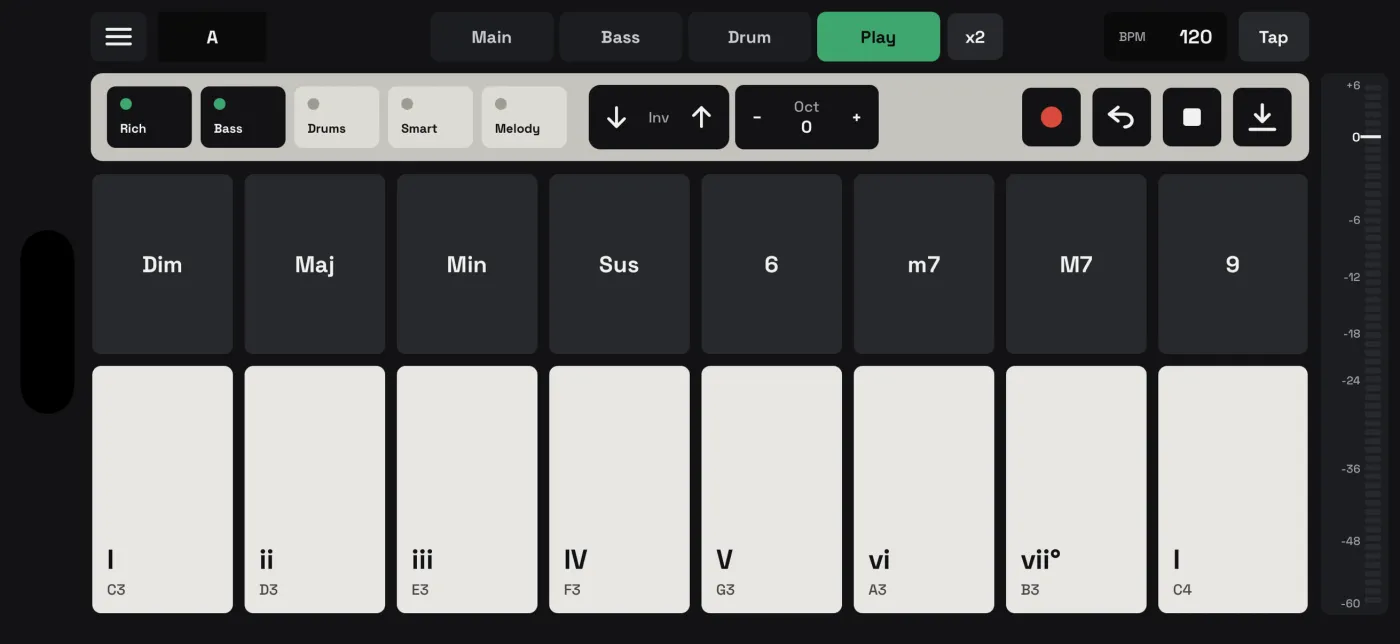
The iPhone app plays the way the computer version does. On the Play tab, hold one of the eight shape pads on top (Dim, Maj, Min, Sus, 6, m7, M7, 9) and tap a root below it: the full chord plays, always in your key. A root on its own plays an octave, or a single note with Melody on. Rich, Bass, Drums and Smart work as in the complete guide, and so do the Main, Bass and Drum tabs, the synth page and the looper. The app runs in landscape.
The settings menu (☰)
Tap ☰ at the far left of the top bar. The Settings panel has its pages on the left. The two you need here:
- General: About still.synth and Bluetooth MIDI devices at the top, then Connection with two switches, Sync and MIDI Out. At the bottom, MIDI in (pad / root) shows every note arriving at the app.
- Saved: your recorded sessions, ready to play back or share as WAV or MIDI.
Close the panel with X or tap outside it.
Local, Sync or MIDI Out
The two switches under Connection are one choice with three positions:
- Both off (the default): the phone plays its own sound.
- Sync: the phone becomes the keys for still.synth on your Mac. The phone is silent, the Mac plays.
- MIDI Out: the phone sends what you play as MIDI to a computer over Bluetooth. The phone is silent here too.
Turning one on turns the other off. While Sync or MIDI Out is on, a small Bluetooth icon sits next to ☰: bright when the phone has a MIDI connection, dim when it doesn’t.
Connect the iPhone to a Mac over Bluetooth
Sync and MIDI Out both start with a Bluetooth MIDI connection. You set it up once:
- On the iPhone: ☰ → General → Bluetooth MIDI devices. The first time, iOS asks for Bluetooth access: tap Allow.
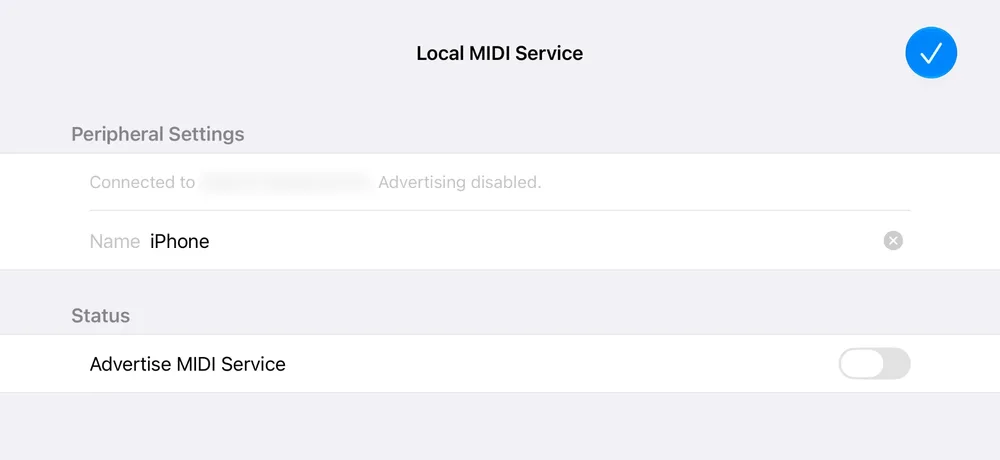
- In the panel that opens (iOS calls it Local MIDI Service), turn on Advertise MIDI Service and keep the panel open.
- On the Mac, open the still.synth app. The first time, macOS asks whether still.synth may use Bluetooth: click Allow.
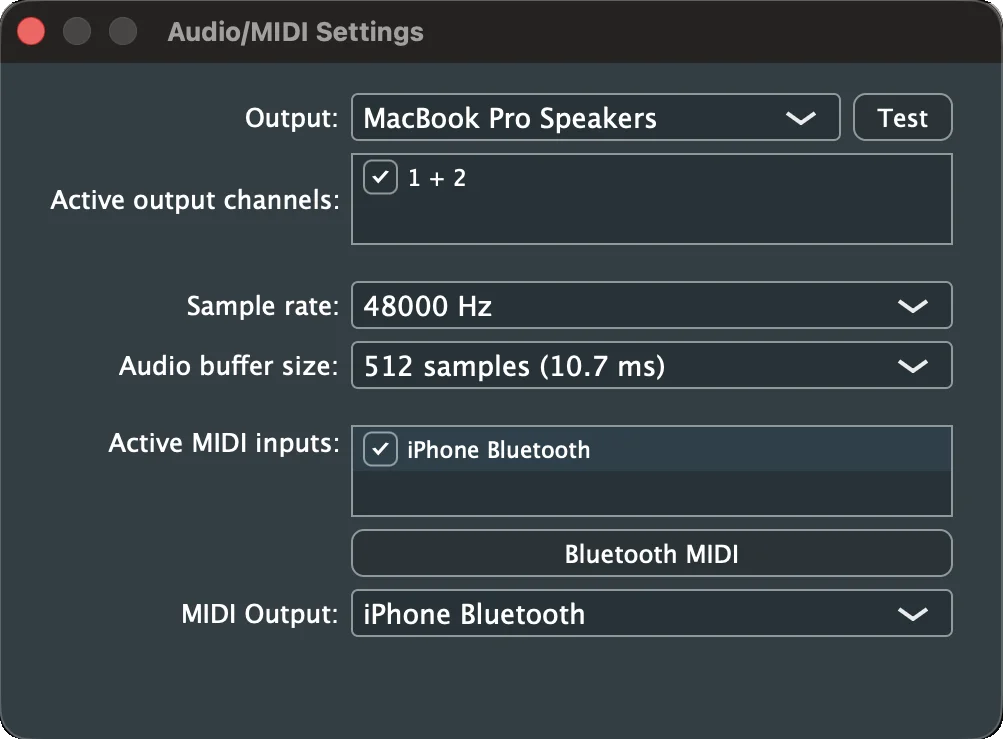
- Click Options → Audio/MIDI Settings… and press Bluetooth MIDI. Your iPhone shows up in the window that opens: click Connect next to it.
- Back on the iPhone the panel now says Connected to your Mac, and Advertise switches itself off. That’s normal. Close the panel with the ✓ in its corner.
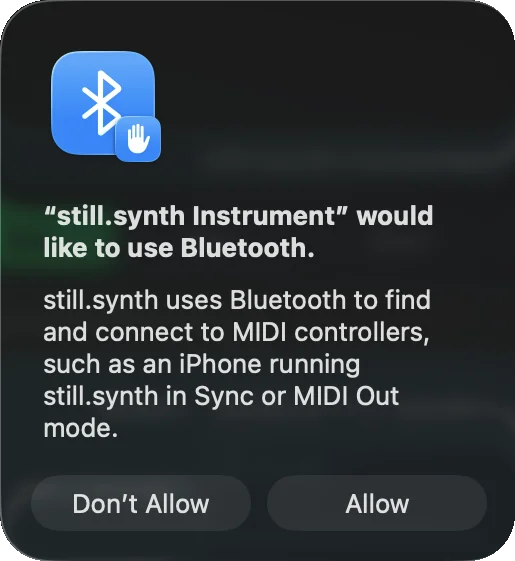
Pressed Don’t Allow by mistake? The app then shows Bluetooth Access Needed: tap Open Settings and turn on Bluetooth for still.synth.
Using MIDI Out with a DAW and no still.synth on the Mac? Connect from Audio MIDI Setup instead (Applications → Utilities): Window → Show MIDI Studio, the Bluetooth button, then Connect.
Sync: play still.synth on your Mac from the iPhone
With Sync on, the iPhone is the keys and the Mac makes the sound, in the Mac’s tempo. Change the key, a preset or a knob on either one and the other follows. You need the still.synth app on the Mac too ($39).
- Connect the iPhone over Bluetooth (above).
- In the still.synth app on the Mac, open Options → Audio/MIDI Settings… again. Tick your iPhone under Active MIDI inputs (it’s listed with Bluetooth after its name, like iPhone Bluetooth) and pick it as the MIDI Output. Both are needed: the input carries what you play, the output carries the Mac’s settings back to the phone.
- On the iPhone: ☰ → General → Sync.
On the Mac, Phone Sync (still.synth iOS) in ☰ → Settings → General switches on by itself when the phone says hello. Its light is green while MIDI is arriving from the phone, red when nothing has come for five seconds. The phone takes the Mac’s key, scale, presets and knobs right away.
Until the Mac answers, the top bar on the phone reads Waiting for desktop. What you play still reaches the Mac, but the phone gets nothing back: check that the iPhone is picked as the Mac’s MIDI Output.
What follows along: key and scale, the Main and Bass presets, the four knobs, all volumes (the kit faders too), Rich, Bass, Drums, Smart, Melody and Bass Solo, play mode, style, drum pattern, bass register and chord quantize, both ways. From the phone to the Mac: the looper’s Record, Undo and Reset, Drum Fill, Tap Tempo, Inv and Oct. The Mac lights the phone’s Record button while it records a loop. The loop itself lives on the Mac.
What doesn’t: the synth page’s own knobs and waves, the drum kit, an edited drum grid, a typed-in BPM and the metronome. Session recording works on each device on its own.
Your own presets stay on each device. If you pick your own synth on one, the other switches to its own synth in the same slot, or stays put if that slot is empty.
MIDI Out: send what you play to a computer
With MIDI Out on, the phone goes silent and sends every note it plays as MIDI, always on the same channels:
- chords (and Melody notes) on 1
- bass on 2
- drums on 10
Loop layers you already recorded are sent too, as they play. So the phone runs the chords, the bassline, the beat and the loop, and your DAW or your instruments make the sound. Notes only, no knob or CC messages.
To use it with a DAW on the Mac: connect the iPhone over Bluetooth (above), turn on MIDI Out, and the iPhone shows up as a MIDI input in your DAW. Make three tracks that listen to it, one on channel 1, one on 2, one on 10, with the instruments you like, and record. The Logic Pro guide shows the same per-channel setup for the plugin. Step by step for Logic, Ableton and GarageBand: use your iPhone as a MIDI controller.
The app has no output picker: it sends to the MIDI connection that appeared most recently. Keep just your computer connected.
Questions
My iPhone isn’t in the list on the Mac.
Advertise MIDI Service has to be on on the phone, and the phone has to be connected first: Options → Audio/MIDI Settings… → Bluetooth MIDI → Connect. Then close and reopen Audio/MIDI Settings in still.synth.
Advertise MIDI Service won’t turn on and says “Connected to … Advertising disabled”.
That’s fine: the phone is already connected to your Mac, and iOS stops advertising while it is. To start over, click Disconnect next to the iPhone in the Bluetooth MIDI window on the Mac (Options → Audio/MIDI Settings… → Bluetooth MIDI), then turn Advertise on again.
The phone plays the Mac, but changes don’t reach the phone.
The Mac’s MIDI Output isn’t set to the iPhone. Pick it in Options → Audio/MIDI Settings… in still.synth on the Mac. After Bluetooth drops and reconnects, check it’s still picked.
The phone is silent.
Sync or MIDI Out is on: in both, the sound comes from the computer. Turn both off in ☰ → General to play the phone on its own.
Does Sync work with the plugin in my DAW?
Use the still.synth app on the Mac for Sync, not the plugin. That’s the setup it’s made for.
Does it work on iPad?
There’s no separate iPad version. The iPhone app installs on an iPad and runs there in an iPhone-sized window.
Get still.synth for iPhone
$19.99 once on the App Store. What the app does: still.synth for iPhone.